
Bulk Edit Transactions, Accounts, and Recurring Bills in BillForecast
BillForecast now ships an in-app spreadsheet editor with autosave and validation. Google Sheets remains an option for external review, but you no longer need to leave the app to fix a hundred rows at once.
Spreadsheet-speed cleanup, without leaving the app
Some personal finance work is easier in a grid. Reviewing a long list of transactions, fixing categories across a month, comparing account fields side by side, fixing typos in payee names — those tasks are faster in a spreadsheet than in a one-row-at-a-time form.
BillForecast now ships an in-app spreadsheet editor that handles those tasks without sending your data anywhere. Open it from Bulk Edit in the sidebar, pick the module you want to edit, and you get a familiar grid with autosave and the same validation rules the rest of the app uses.
What you can bulk edit in-app
- Transactions: date, description, type, amount, category, accounts (from/to), and notes — across hundreds of rows in one view.
- Accounts: name, type, balance, currency, institution, and active status.
- Recurring bills: name, type, amount, frequency, start/end dates, category, accounts, active/auto-create flags, and variable-amount toggles.
Every edit goes through the same validators your manual edits run through — invalid categories, broken account references, malformed dates, and impossible amounts are caught before they save.
How the in-app editor works
- Open Bulk Edit. From the sidebar (desktop), open Bulk Edit and choose Open transactions spreadsheet, Open accounts spreadsheet, or Open recurring spreadsheet.
- Edit rows in the grid. Tab between cells, type new values, paste from another source, or use dropdowns for fixed fields like type and frequency. The row status indicator shows when each save lands.
- Toggle autosave or batch. Autosave commits each row the moment focus leaves it. Turn it off if you want to make several connected edits and only save when you're done.
- Watch for errors. Validation runs on every save, surfaces inline, and never lets a bad row corrupt the ledger.
Google Sheets is still there for external review
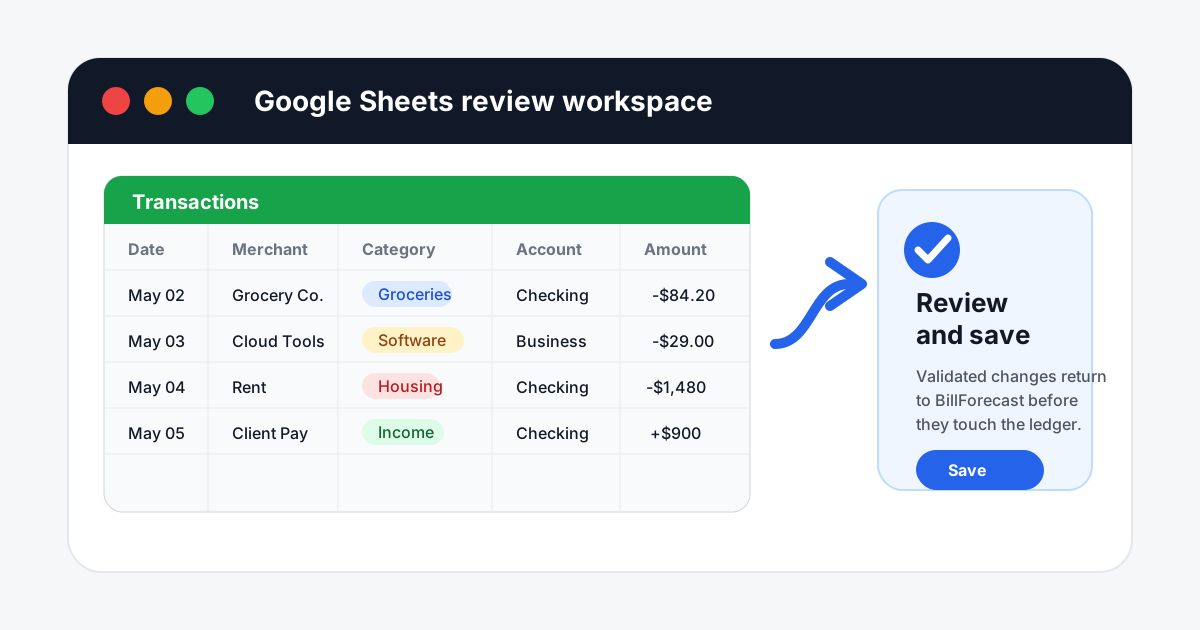
If you need to share data with someone outside BillForecast or use spreadsheet features the in-app editor doesn't have (pivot tables, custom formulas, multi-sheet linking), the Google Sheets workflow on the same Bulk Edit page still works. Connect your Google account, create a review sheet, edit in Sheets, then preview and apply the changes back through BillForecast.
The difference now: that's the exception, not the default. For routine cleanup the in-app editor is faster (no OAuth handshake, no new tab, no copy-back step) and keeps your data inside the app the whole time.
Good use cases for the in-app editor
- End-of-month category cleanup: Filter uncategorized rows and apply consistent labels in seconds.
- Receipt and note polish: Read descriptions in a larger table before saving edits.
- Account audit: Compare balances, currencies, and active flags across many accounts.
- Recurring tune-up: Adjust amounts, frequencies, or end dates after a rent change or a subscription cancellation.
Privacy and control
The in-app editor doesn't send your data to any third party — everything stays inside BillForecast. The Google Sheets path is opt-in and clearly disclosed before it sends anything to Google. Either way, every change goes through the app's validation before it touches your ledger.
Try it
If you're already on BillForecast, open Bulk Edit from the sidebar on a desktop and pick a module. New here? Start a trial and the editor is available as soon as you have a few transactions to clean up.